

HubSpot is one of the most well-known and full-stacked marketing platforms on the planet because it is a leading contact relationship management CRM (customer management relationship management) systems.
At their core, most CRM center on the creation of contacts.
Contacts are at the center of most CRMs because they represent the individuals or organizations that a business interacts with. These interactions could be in the form of sales, customer service, marketing, or other business activities.
Contacts in a CRM can include leads, existing customers, partners, suppliers, or any other entities that have a relationship with the business. Each contact record typically contains detailed information about the individual or organization, such as their name, contact information, interaction history, preferences, and more.
In essence, by placing contacts at the center of a CRM, businesses can ensure that all departments have a unified, up-to-date view of their relationships, leading to more coordinated and effective business operations.
For an even deeper dive into contacts, be sure to check out our blog post on what contacts are in HubSpot.
Contacts vs. segments in HubSpot
segments and contacts in HubSpot are not necessarily the same thing, although there are some ways for you to use them in tandem for your sales or marketing efforts.
Contacts represents individuals who have interacted with your business in some way, while segments are collections of these contacts based on specific criteria. When there are multiple interactions from marketing and sales, these interactions are recorded under each contact, and segments can be used to group similar contacts together.
For instance, if a user fills out a contact form on your website after clicking on a pay-per-click advertising campaign, that user becomes a contact in your HubSpot CRM. However, if that same user opens and clicks an email link prior to making a purchase, they could be added to a segment of 'Engaged Email Recipients'.
Which segment should this contact belong to? That depends on your marketing strategy, which dictates how you segment your contacts into different segments.
Since this kind of segmentation can be complex, maintaining clean and organized data is very important. This involves regularly checking your segments and contacts to ensure that there are no errors such as missing information or duplicate entries.
Why Make Different segments?
You might be wondering what’s the significance of making various segments and why not have one?
The ability to create segments is, effectively, how you segment contacts out in HubSpot.
For example, we see HubSpot users use segment to:
- Sales. Identify and target new sales targets for cold outreach.
- Marketing. Segment out contacts for a promotional email send.
- Service. Identify contacts that have an open ticket from the last week.
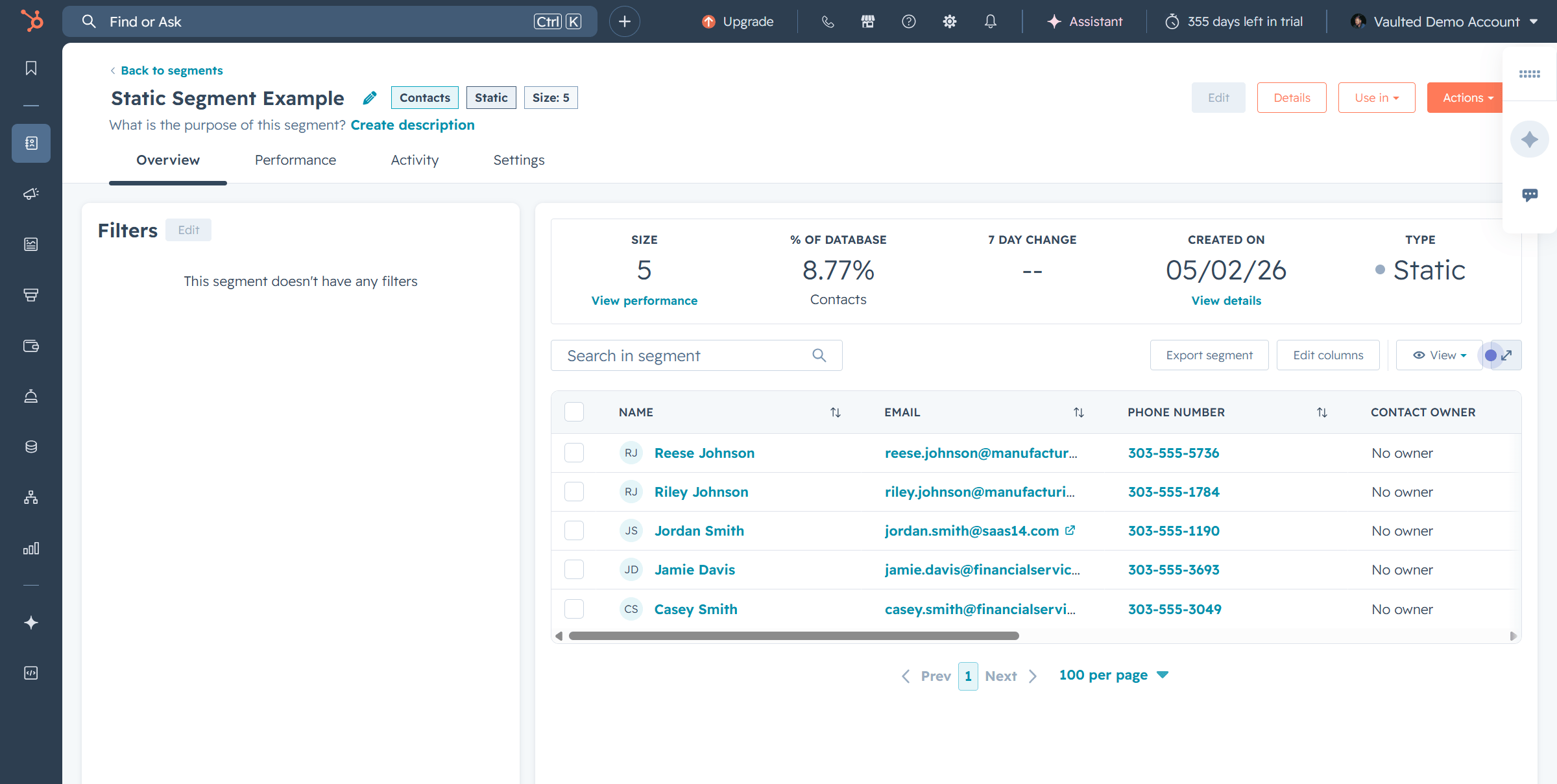
The takeaway is this: any time you need to group together contacts in HubSpot, you need a segment.
Specifically, some other reason might include:
-
Segmentation. At its core, segments are how you segment contacts in HubSpot. Any situation where you need to segment out a certain subset of contacts from your main database, you need to create a segment.
-
Personalization: Similar to how a user's behavior can change over time, leading to different interactions and outcomes, segments allow you to personalize your marketing efforts based on the evolving needs and behaviors of your contacts. For example, you could send an email to only is specific set of contacts versus everyone in your HubSpot account.
-
Efficiency: Just as data hygiene is crucial in ensuring the accuracy of your records, maintaining multiple segments in HubSpot can enhance the efficiency of your marketing efforts. By organizing your contacts into distinct segments, you can ensure that your marketing messages reach the right audience, reducing the risk of errors or miscommunication.
-
Tracking and Analysis: In the same way that attribution models help determine which actions deserve credit for a deal, segments can help you track and analyze the effectiveness of your marketing campaigns. By grouping contacts based on their response to different marketing strategies, you can gain valuable insights into what works and what doesn't.
-
Automation: Just as behaviors are recorded and used to automate certain processes, segments can be used to automate your sales efforts. By setting up automated workflows based on your segments, you can ensure that your contacts receive timely and relevant marketing messages, enhancing their engagement with your brand.
Using automated segments can save you time and money since it doesn’t require a manual effort. You can allow HubSpot to do the heavy lifting for you.
Since HubSpot can track metrics, it takes out the stress of executing different strategies depending on the content, and you can focus your energy on other aspects of your business.
Types of segments
HubSpot currently supports two types of segments: active segments and static segments. You might be wondering what the difference between the two is?
Active segments automatically update their members based on their criteria. Static segments include records that meet set standards when the segment is saved and does not update automatically.
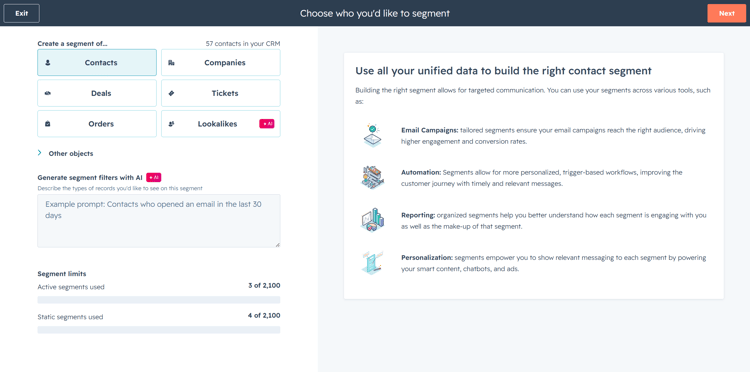
Having two options allows you to create segmented segments based on your needs and nurture leads without micromanaging your content.
What are segments used for?
Uses of the segment in HubSpot are:
- Sending a campaign email to a segment.
- Create a segment of users who filled up the registration form.
- Using a segment in workflows.
- Filter contacts by their segment memberships.
- Sending feedback survey forms with a static segment.
Remember that HubSpot segments are both a way to organize contacts and a unit of analysis—this means that while you can use the same segment for an email send you can also examine how your segments are performing.

And segmentation is the key. After all, there’s no cost associated with creating segments in HubSpot. Whether you’re using your segments in workflows or part of larger paid media campaign, segment management
Where do I find HubSpot segments?
Looking at the HubSpot dashboard, you will see various tabs at the top.
Go to the top of your dashboard and click Contacts > Segments. That should allow you to access your segments.
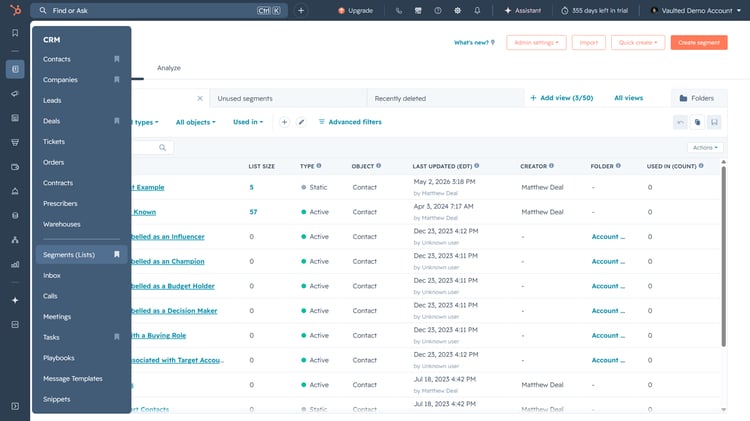
If for some reason you are struggling, always rely on the available search bar or reach out to their customer service team for assistance.
If you make changes to your contact segment, that will not be viewed by other members on HubSpot. It will solely be visible to you. It’s essential to keep that in mind to communicate with your team.
How Do I Edit HubSpot Contacts?
If you’re looking at the HubSpot dashboard, you’ll see the top horizontal segment of options, continue to the right side, and next to the search bar, you’ll see Actions.
Click Actions, and it will allow a drop-down selection of options:
- Edit Columns
- Edit Properties
- Manage Duplicates
- Restore Contacts - This allows for restoring contacts that have been deleted within the past 90 days.
You have several action items to choose from. If you look to the right of Actions, there’s an Import button to send off any contact segments if needed.
General Actions for Contact segment
Once you've pulled up your contact segment, you will notice several actions directly above your contact segment.
These items include:
- Assign - You can assign a contact to a contact owner.
- Edit - This allows you to make changes to individual contact properties.
- Delete
- Task Reminder - Add a reminder to your chosen contact.
- More - Add to static segments and change workflows
What are Active segments?
Let’s start with what an “active segment” means. An active segment automatically changes and updates over time, depending on the contact properties. Therefore, as your contact segment evolves, HubSpot will update your active segment as needed.
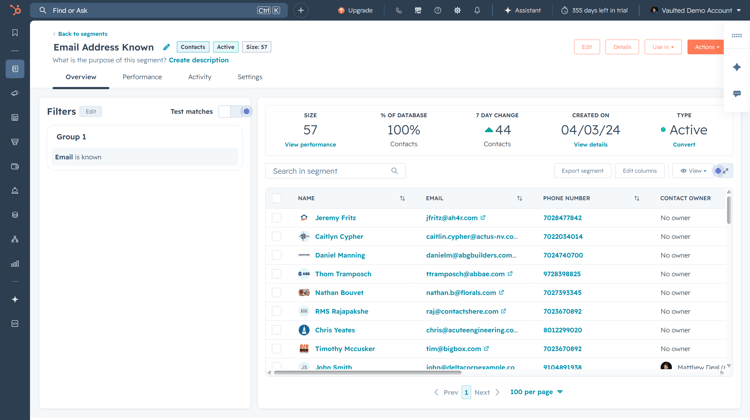
Think of your active segment as always on the go and can be set up to have little interference to its scheduled segment and actions.
You might be wondering when you would need an active segment.
Active segments are perfect if you have routine content sent to a particular segment without additional thought. For example, active segments are ideal for sending newsletters to a contact segment you’ve created. It won’t be sent to everyone in your contacts, just the segment you’ve created for this specific task.
New contacts will be added automatically to the active segments, and the newsletter will also be sent to those contacts.
You can use active segments to observe contact behavior and use it for future marketing campaigns.
You can group contacts based on how you wish to vary each segment. For example, some contacts may be on a mailing segment while others are not. Active segments allow you to create segmentation to help deliver content.
Active Segment Filters
After you’ve chosen to make an active segment from your contact-based collection, you will have the option to filter your segment.
HubSpot allows countless specificities of organizing your active segment to carry out marketing strategies.
For example, you can click on “page views,” HubSpot will build a segment based on which contacts visit your page. Having the option for filters allows you to segment your contact segments as needed, and using HubSpot’s features takes lots of the guesswork out of these decisions. It’s automatic once you’ve applied the filters.
You can get more specific to which date an email was opened - the options are endless, and the active segment will automatically change per filter and section.
What are Static segments?
Opposite to an active segment, a static segment does not update over time.
A static segment represents a single moment and does not update per changes to your contact segment properties. It differs from active segments that are prompted by changes.

A static segment can help gain insight into contacts or companies that met specific criteria in a particular period. Since it’s stand-alone metrics, you can gain awareness that can help benefit your marketing efforts.
We’ve touched on reasons you might need an active segment but let’s look at options for static segments.
Some reasons you might need a static segment:
- Manually adding information regarding contacts and properties
- Contact segments you know will remain the same
- Single-time marketing efforts
- Identifying a moment-in-time
Contact-Based Vs. Company-Based
When choosing either a static or active segment, on the left side, you will see two options: contact-based and company-based options.
You will mostly rely on contact-based segments unless you are a company or need to specifically target companies, which then you will choose the company-based selection. It’s essential to understand the distinction between the two to set up your active or static segments properly.
Additional Actions to Access and Edit a segment
First, head over to your HubSpot account and locate the Navigate button.
As mentioned earlier, you can find a segment under Contacts. From there, choose which segment you wish to edit.
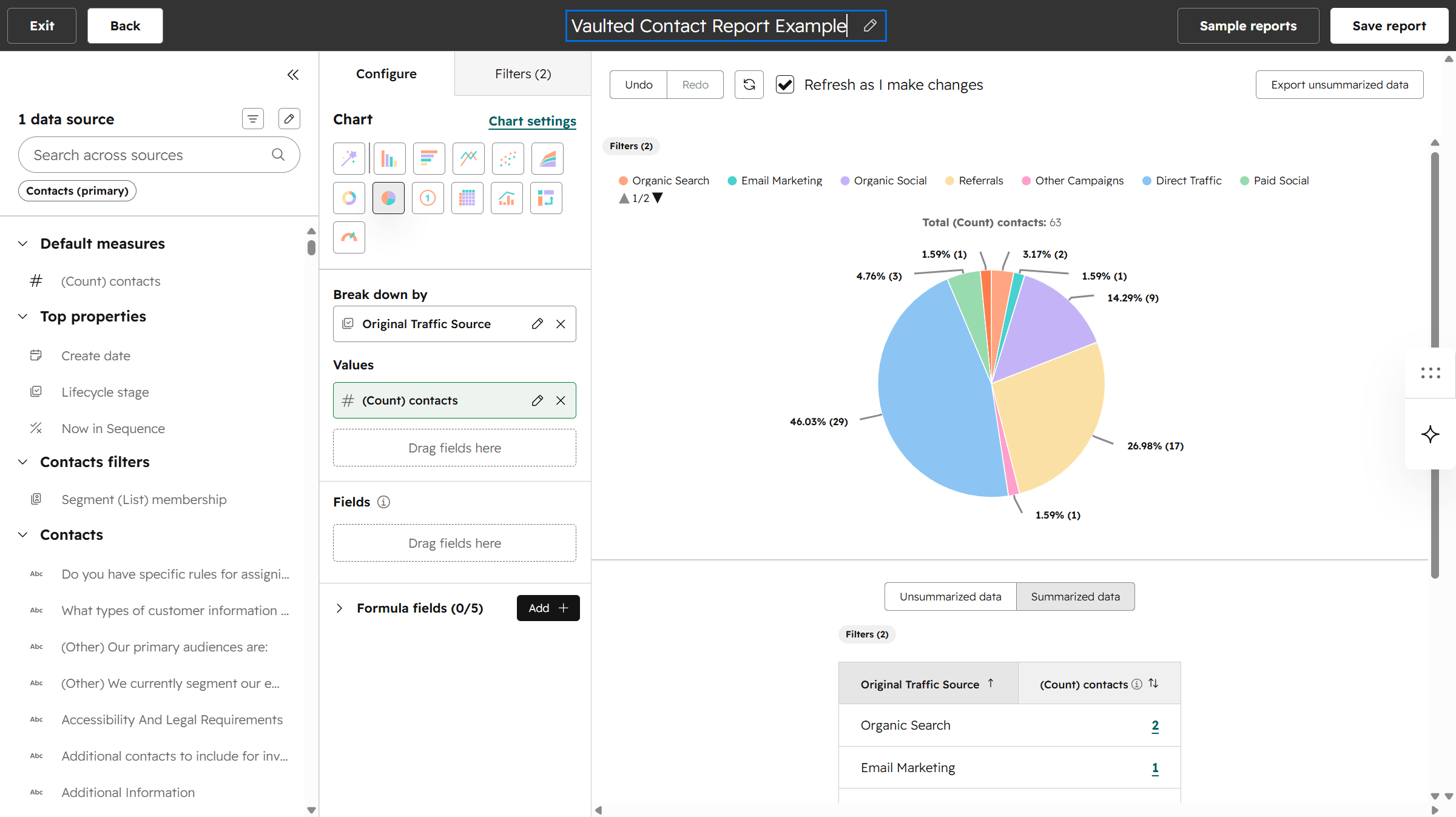
If you’re looking for a specific contact in your segment, use the search bar in the upper right to locate quickly.
In the upper right, click the Actions menu to dropdown actions with your segment:
- Edit columns: if you need to edit, select the contacts and properties that require changes.
- Export: download a copy of the segment.
- Test a Contact: Probably one of the most crucial parts of making segments is to test before you enable a content campaign. Try making a segment using people you know or team members. Not only see if it works correctly, but it looks the way you’d like.
- Move to Folder: Need to move a segment? Just select and send.
- Clone: You can replicate a segment to another action item under specific criteria.
- Delete: Deleting a segment allows you to remove segments permanently. It’s important to know that you can only delete indexes that aren't actively used elsewhere in HubSpot. You don’t have to worry that the contacts in the segment will not be deleted.
- Create a Report: You might need a report for future reference or share with other team members. You can create a custom report based on your segment and criteria.
- View segment Performance: Viewing your segment allows you to analyze your segment's metrics. You can analyze your contact activity for future marketing decisions.
- Resync segment with Salesforce: this action is only meant for a professional or enterprise account that are using HubSpot in conjunction with Salesforce A segment can be responsive to the segment with Salesforce if you're using the Salesforce integration. You can also limit the connection between segments and Salesforce.
Master HubSpot segments
We’ve provided lots of information here but don’t be alarmed! Take your time and each step one at a time.
It’s essential to segment segments to help with various marketing initiatives adequately.
Some items to remember:
- HubSpot has many features and it will take time and patience to feel confident with the platform. Do not get discouraged, keep at it!
- HubSpot might not be intuitive for everyone, play around with it before attempting to create and segment segments.
- Save this article for future reference if you cannot remember a specific step. It’s best to do it right than to guess.
There you have it, all the ways to control and manage your HubSpot segments for marketing initiatives. We’ve provided lots of information, but we cannot stress enough the importance of practice to feel confident in making active or static segments.
Still have more questions? Don't be afraid to reach out to the HubSpot experts.
Discover More Insights

HubSpot–Salesforce Integration: Why It Breaks and How to Fix It
Quick answer: HubSpot's native Salesforce connector rarely breaks. The setup around it does: mismatched picklists, integration user permissions, duplicate rules, Salesforce validation rules and flows, API call limits, or a custom build with no agreed source of truth. You can find the cause in about 15 minutes in HubSpot's Sync Health view. If errors return after you clear them, rebuild the foundation.

The Best Web Design Agencies in Raleigh and Charlotte (And How to Pick the Right One)
Quick answer: The best web design agencies in Raleigh and Charlotte are Vaulted (B2B companies that need a website tied to HubSpot and lead generation), TheeDigital (WordPress plus marketing under one roof), Straight North (eCommerce and lead generation at scale), Lazarus Design (custom builds for small and mid-sized businesses), Four Eyes (direct access to senior WordPress developers), Imaginovation (custom software and web applications), and Walk West (enterprise, nonprofit, and public sector). At Vaulted, websites start at $10,000 and most projects run $20,000 to $50,000.
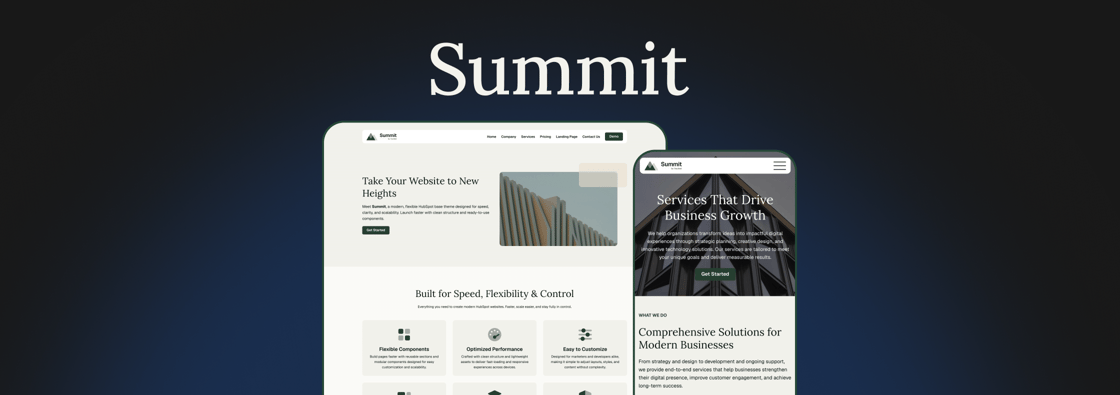
11 Things We Learned Getting Our First Theme onto the HubSpot Marketplace
We just got our first theme approved on the HubSpot Template Marketplace. It's called Summit, it's free, and it's the same base theme we've been starting client sites from for a while now.
 Emily Davidson