

Quick answer: HubSpot's native Salesforce connector rarely breaks. The setup around it does: mismatched picklists, integration user permissions, duplicate rules, Salesforce validation rules and flows, API call limits, or a custom build with no agreed source of truth. You can find the cause in about 15 minutes in HubSpot's Sync Health view. If errors return after you clear them, rebuild the foundation.
The Connector Is Fine. Your Setup Is the Problem.
When a HubSpot–Salesforce integration starts failing, the first instinct is to blame the integration. We get it. Leads go missing, sales says marketing’s data is wrong, marketing says sales never updates anything, and someone ends up reconciling two reports by hand every Monday.
But in the integrations we’ve audited, the native connector was doing exactly what it was told. The instructions were the problem. Two systems were set up by different people, at different times, with different rules, and nobody decided which one wins when they disagree.
That’s good news, because setup problems can be found and fixed. Here’s how the sync works, the six things that break it, and how to tell a quick fix from a rebuild.
How the HubSpot–Salesforce Sync Actually Works
You need four facts to diagnose almost anything:
- It’s not instant. HubSpot checks Salesforce for changes about every 15 minutes. A record that hasn’t shown up after two minutes isn’t broken. One that hasn’t shown up after an hour probably is.
- Only certain changes trigger a sync. A change to a mapped field does. An update to a Salesforce formula field does not, which is why calculated values often look stale in HubSpot.
- The inclusion segment decides which contacts sync. If you’ve set one, a contact that isn’t in that segment won’t go to Salesforce, no matter what else is true about it. This is the most common answer to “why didn’t this lead sync?”
- Every mapped field has a sync rule. There are four: Prefer Salesforce unless blank, Always use Salesforce, Two-way, and Don’t sync. The rule decides which system wins when the values differ. Most “HubSpot keeps overwriting my data” complaints are a sync rule doing its job.
The Six Reasons a HubSpot–Salesforce Integration Breaks
| Cause | What You See | The Fix |
| Picklist and field-type mismatches | Records fail on one specific field: state, country, industry, opportunity stage | Make the options identical in both systems and map compatible field types |
| Integration user permissions | Whole groups of records or fields never sync | Give the integration user Read and Edit access to every mapped object and field |
| Duplicates | “Email already in use” errors, or two records for one person | Deduplicate both systems and adjust Salesforce duplicate rules |
| Salesforce automation and validation rules | Errors that started right after someone changed something in Salesforce | Send the required values from HubSpot, or exempt the integration user from the rule |
| API call limits | The sync slows down or pauses, usually late in the day | Raise HubSpot’s allocation, cut unnecessary mappings, and stop mass resyncs |
| Custom builds and no source of truth | Workflows fighting each other, reports that never match, constant babysitting | Rebuild on native functionality with written rules for which system owns what |

1. Picklist and Field-Type Mismatches
Salesforce has a dropdown with “United States.” HubSpot sends “USA.” The record fails. Multiply that by every dropdown in your CRM: state and country, lead source, industry, opportunity stage. Restricted picklists in Salesforce are the strictest, because they reject any value that isn’t already on the list.
The same thing happens with field types. A long text value pushed into a short Salesforce text field fails with a “string too long” error. An inactive Salesforce owner assigned to a record fails too. The fix is tedious but simple: make the options match exactly, and only map fields of compatible types.
2. Integration User Permissions
The integration connects through one Salesforce user, and it can only see and change what that user can. When a Salesforce admin adds a new field or tightens a profile and forgets the integration user, that field quietly stops syncing. The integration user needs Read and Edit access on every object and field you’ve mapped. Check this first whenever a brand-new field refuses to sync.
3. Duplicates
HubSpot identifies contacts by email address. Salesforce lets you have a lead and a contact with the same email, plus its own duplicate rules that block new records that look like existing ones. Put those two models together without a plan and you get “Email already in use” errors, blocked record creation, and reps working the wrong copy of a person. Clean up duplicates on both sides before you touch anything else. Every other fix works better on clean data.
4. Salesforce Automation and Validation Rules
This is the one that makes a healthy sync break overnight. Someone adds a validation rule in Salesforce (“every opportunity needs a close reason”) or a flow that fires on record updates. HubSpot’s next update doesn’t meet the rule, so Salesforce rejects it. HubSpot files these under “Custom code” errors.
The integration didn’t change. Salesforce did. You have two options: send the required values from HubSpot, or exempt the integration user from the rule. And put a process in place so Salesforce changes get checked against the sync before they go live.
5. API Call Limits
Every sync uses Salesforce API calls, and Salesforce caps how many your org gets in a 24-hour period. HubSpot gets a share of that cap. Run through it and the sync pauses until calls free up. The usual culprits are too many mapped fields, a big import, or someone resyncing a whole segment, which can take up to four API calls per record. HubSpot shows you both numbers, the Salesforce limit and the amount allocated to HubSpot, so you can see how close you are.
6. Custom Builds and No Source of Truth
This is the big one, and it’s the only one that Sync Health won’t spell out for you. Somewhere along the way, someone built around the native integration: a custom object to hold marketing data, a middleware tool, a stack of workflows that copy values from field to field. Each piece made sense on the day it was built. Together, they create a system where nobody can say which platform owns the lifecycle stage, the lead status, or the owner.
When there’s no source of truth, both systems keep “correcting” each other. You can clear every error in the list and they’ll be back next week.
How to Diagnose Your Integration in 15 Minutes
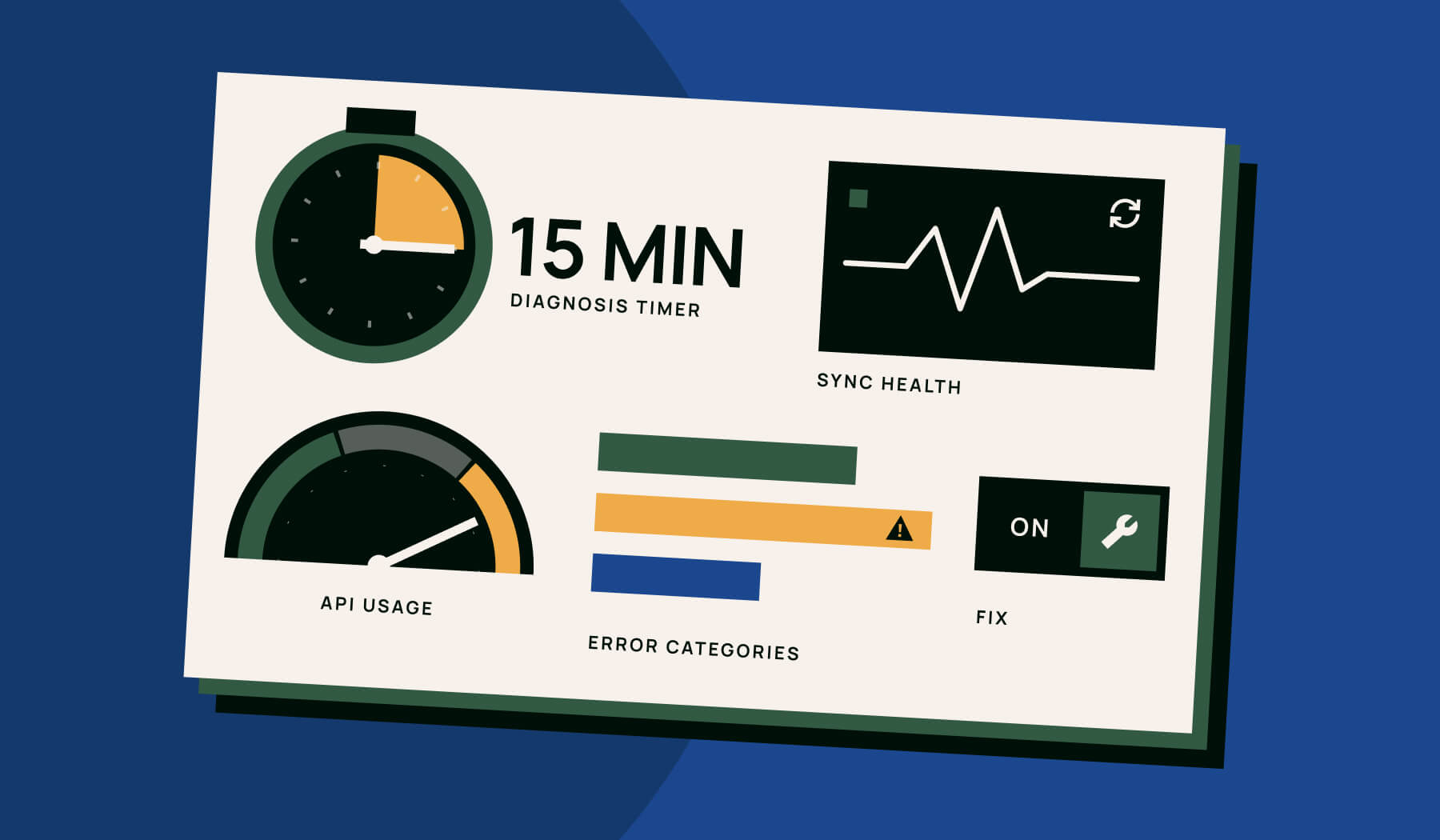
- Open Sync Health. In HubSpot, go to Settings > Integrations > Connected Apps > Salesforce, open the Data sync tab, and click Sync Health.
- Check API call use. If you’re near the limit, that’s your answer for slow or paused syncing.
- Read the error categories. HubSpot groups sync errors into associations, custom code, duplicates, permissions, picklists, property mappings, and property values. The category with the most errors tells you which of the six causes above you have.
- Fix the cause, then resync. Fix the mismatch or the permission first. Then select the affected records in the error list and click Resync. Resyncing before you fix the cause just recreates the errors.
- Turn on sync error notifications. Set them to instant or daily so the next problem reaches you before it reaches your sales team.
Patch It or Rebuild It?
Patch it if your errors sit in one or two categories, they trace back to a specific change, and they stay fixed once you clear them.
Rebuild it if any of these sound familiar:
- The same errors return within days of being cleared.
- Someone on your team spends hours every week watching workflows or reconciling reports.
- Nobody can say which system owns lifecycle stage or lead status.
- The integration depends on a custom object or tool that the person who built it no longer supports.
- Sales and marketing report different numbers for the same thing.
A rebuild sounds drastic. In practice it usually means removing things, and the integration gets simpler.
What a Rebuild Looks Like: VenturEd Solutions
VenturEd Solutions, a K–12 education technology company, came to Vaulted after a migration to HubSpot left its Salesforce integration unstable. A previous vendor had built a custom marketing object to bridge the two systems. It caused inconsistent lead routing, conflicting automations, workflows that needed constant oversight, and U.S. and U.K. reports that had to be reconciled by hand.
We didn’t add anything clever. We took the clever thing out:
- Audited the custom object and the full data flow between the two systems
- Removed the custom object and rebuilt on HubSpot’s native functionality, with written data governance rules
- Reworked lead routing and removed overlapping workflows
- Standardized lifecycle stages and field mappings
- Rebuilt reporting and added validation and monitoring
The results: about 30 hours a week reclaimed, 67% fewer errors, and an MQL-to-SQL conversion rate that went from 8–11% to about 17% within three months, once the team could score leads for the first time.

VenturEd Got 30 Hours a Week Back
We removed a vendor's custom build and rebuilt the sync on HubSpot's native tools. The result: about 30 hours a week back and 67% fewer errors.
Read the Case StudyWhen to Bring in a HubSpot Partner, and What It Costs
If your problem is a picklist or a permission, you don’t need an agency. Your Salesforce admin and the steps above will handle it.
Bring in a partner when the problem crosses both systems and nobody on your team owns both. That’s the situation behind most integrations that keep breaking: a Salesforce admin who doesn’t know HubSpot, a marketing team that doesn’t know Salesforce, and a gap in the middle.
Vaulted is a Gold HubSpot Solutions Partner based in Raleigh, North Carolina. A HubSpot–Salesforce integration audit and rebuild is a one-time project, and our HubSpot projects run $3,000 to $30,000 depending on how many objects, custom fields, and workflows are involved. If you want someone watching the integration and your HubSpot portal after the fix, ongoing HubSpot services start at $3,000 a month.
Not sure which side of the line you’re on? Send us your Sync Health screenshot and we’ll tell you whether it’s a patch or a rebuild.
Discover More Insights

The Best Web Design Agencies in Raleigh and Charlotte (And How to Pick the Right One)
Quick answer: The best web design agencies in Raleigh and Charlotte are Vaulted (B2B companies that need a website tied to HubSpot and lead generation), TheeDigital (WordPress plus marketing under one roof), Straight North (eCommerce and lead generation at scale), Lazarus Design (custom builds for small and mid-sized businesses), Four Eyes (direct access to senior WordPress developers), Imaginovation (custom software and web applications), and Walk West (enterprise, nonprofit, and public sector). At Vaulted, websites start at $9,000 and most projects run $20,000 to $50,000.
11 Things We Learned Getting Our First Theme onto the HubSpot Marketplace
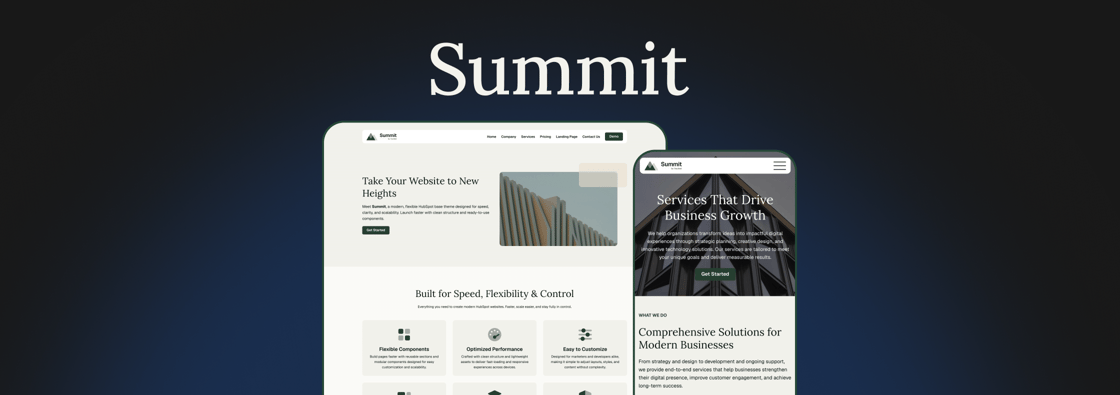
We just got our first theme approved on the HubSpot Template Marketplace. It's called Summit, it's free, and it's the same base theme we've been starting client sites from for a while now.
 Emily Davidson

AI That Designs Inside Your Brand, Not Around It
Every blog post needs a thumbnail. For a team publishing every week, that small task adds up. The usual options each have a catch. A designer can build every image by hand, but then the designer becomes the bottleneck. Templates are fast, but after a few months every post looks the same. AI image generators are faster still, but what they produce is off-brand, inconsistent, and impossible to edit.